
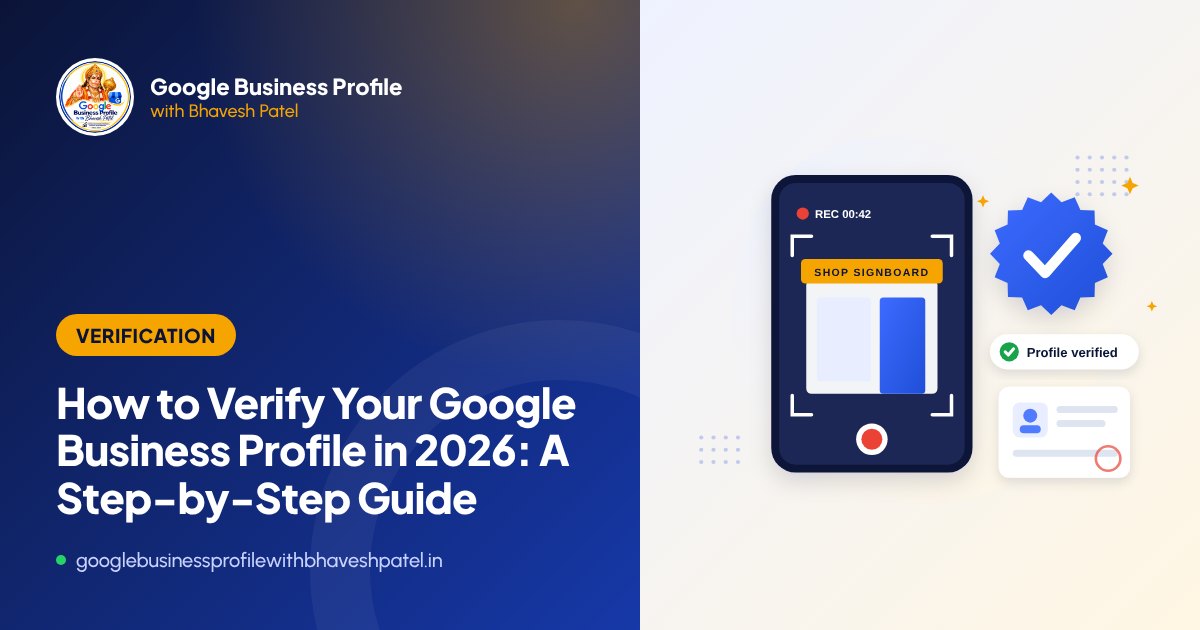
If you have created a Google Business Profile (formerly Google My Business) and your screen says “Get verified”, you are at the most important step. Until verification is complete, you cannot fully manage your profile and, in many cases, it will not show properly to customers on Google Search and Google Maps.
Verification has become much stricter over the last few years. This guide explains how it works in 2026, based on our experience helping businesses in Ahmedabad and across India since 2007.
Why Google asks you to verify
Verification lets Google confirm three things: that your business is real, that it operates at the address or in the service area you entered, and that you are authorised to manage it. Because fake and spam listings are a constant problem on Google Maps, Google now checks many businesses more carefully than before, especially in categories that attract spam, such as repair services, locksmiths and some home services.
Before you start: a 5-minute readiness check
Most failed verifications could have been avoided with a quick check before starting. Make sure that:
- Your business name matches your signboard exactly. No added keywords, city names or slogans.
- The address is correct and the map pin is placed on your actual entrance.
- You chose the right business type. If customers visit you, show the address. If you visit customers, set up as a service-area business and hide the address.
- Your primary category is accurate and describes what you actually are.
- Your phone number and website belong to this business and match each other.
- You have a permanent signboard or branding that can be shown in a video.
Tip: Avoid making lots of edits right before or during verification. Changes to key details can reset the process or trigger extra review.
Verification methods Google may offer
You cannot choose your method. Google shows the options available for your profile, based on factors such as category, location and history. These are the methods businesses commonly see:
| Method | How it works | Good to know |
|---|---|---|
| Video recording | You record and upload a short, continuous video of your business | Now the most common method. Reviewed manually, which can take a few days. |
| Phone call / SMS | A code is sent to your business phone number | Fast when offered, but not available for every profile. |
| A code is sent to a business email address | Usually requires an email on your own business domain. | |
| Live video call | You show your business to a Google representative on a call | Keep your signboard, premises and documents ready. |
| Postcard | A code is posted to your business address | Less common now, and it can take weeks to arrive. |
How to record a verification video that gets approved
Video verification is where most businesses get stuck. Google wants to see, in one continuous recording, that your business exists at the location and that you manage it. A good video typically shows:
- The location: start outside and show the street, a road sign or nearby shops so the location can be matched to your address.
- Your business signage: show your permanent signboard or branding clearly, with your business name readable.
- Your entrance and premises: walk in and show the inside, such as your counter, workspace, products or equipment.
- Proof of management: show something only the owner or staff can do or access, such as unlocking the door or shutter, opening the cash counter, accessing a staff-only area, or showing business documents, tools or a vehicle with branding.
For a service-area business without a shop, focus on what proves your business is real and that you run it: branded vehicles, tools and equipment, business documents and anything that links you to the business name.
Common mistakes: cutting or editing the video, filming only indoors, a signboard that is temporary or unreadable, filming in the dark, or showing a location different from the profile address.
Why verification fails, and what to do
“We couldn’t verify your business”
This usually means the submission did not prove the location, the business or your management of it clearly enough. Compare your video against the checklist above, check that the profile details match exactly what was shown, and try again with a clearer, continuous recording.
Verification stuck on “pending”
Manual reviews can take a few days. Avoid making edits while you wait. If it has been pending for much longer than expected, there may be an issue with the profile that needs a closer look.
No verification options are showing
This can happen when Google needs more information, when the profile has been flagged, or when there is a conflict with another listing. In these cases it is usually best to review the profile details and, if needed, contact Google Business Profile support with clear information.
Asked to verify again after an edit
Changing your name, address or category can trigger re-verification. Plan important edits together, make sure they are accurate, and be ready with the same evidence as before.
After verification: what to do next
- Complete every section: services, products, hours, attributes and description
- Upload real photos of your exterior, interior, team and work
- Start asking happy customers for reviews, and reply to every one
- Check that the Call, Directions and Website buttons work on mobile
- Read our guide on how to rank higher on Google Maps
Need help with verification?
If verification has failed more than once, or you are unsure how to prepare, we can review your profile and give you a clear, step-by-step plan for your business type. Learn more about our Google Business Profile verification support, or message us on WhatsApp.
Frequently asked questions
Please note: Google updates Business Profile features and policies regularly. This guide reflects our experience as of 10 October 2026. Always check the official Google Business Profile Help Centre for the latest rules.

About the author: Bhavesh Patel
Google Business Profile and Google Maps expert based in Ahmedabad, helping local businesses get verified, reinstated and found since 2007. More about Bhavesh